Cybersecurity Exploration
RING Cybersecurity Exploration
Gain hands-on experience with command-line tools, network security, firewalls, password cracking, encryption, and more.
RING (Regions Investing in the Next Generation) Cybersecurity Exploration is a cybersecurity course that offers interesting and engaging content specifically for students and schools without an existing cybersecurity program. RING is more than a collection of labs and presentations--it's forging the tools that will shape the next generation of cybersecurity experts.
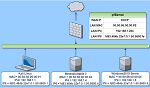
All NETLAB+ supported RING Cybersecurity Exploration labs use the RING Cybersecurity Exploration Pod.
Supported Labs
| Lab Number | Title |
|---|---|
| 1 | Getting Started |
| 2A | (Linux/BASH) Basic Command Line Tools |
| 2B | (Windows/CMD) Basic Command Line Tools |
| 3 | Create and Manage Users in Linux and Windows |
| 4 | Basic Network Commands in Linux and Windows |
| 5 | Capture and Analyze Network Traffic |
| 6 | Hashing Tools in Linux and Windows |
| 7 | Cracking Passwords in Linux and Windows |
| 8 | Encrypting Files and Directories in Linux and Windows |
| 9 | Scanning Ports and Services in Linux and Windows |
| 10 | Vulnerability Scanning on Linux and Windows |
| 11 | Firewall Configuration in Linux and Windows |
| Comp 1 | Junior Network Administrator Interview |
| Comp 2 | Network Recon |
| Comp 3 | Sting Ops (Hashing, Encryption, and Password Cracking) |
| Comp 4 | Network Security Test |
Enabling the Labs
To enable the labs in NETLAB+, install the RING Cybersecurity Exploration course using the Course Manager. See the Course Manager section of the NETLAB+ VE Administrator Guide for details.
Using the Labs
Always select the correct lab exercise for the lab being performed. Students or teams should schedule the correct lab exercise from the catalog. NETLAB+ will only show those labs for which the required pod type is available. A lab that works on different pod types may appear more than once if your system is so equipped. Instructors should select the correct lab from the Exercise tab during instructor-led lab reservations. This can be done as many times as needed during the reservation.